How to Remove Paragraph Symbols in Outlook 2026 Guide
You open an email in Outlook and see strange ¶ marks everywhere. They make your message look messy. You didn’t add them, and you don’t know how to remove them.
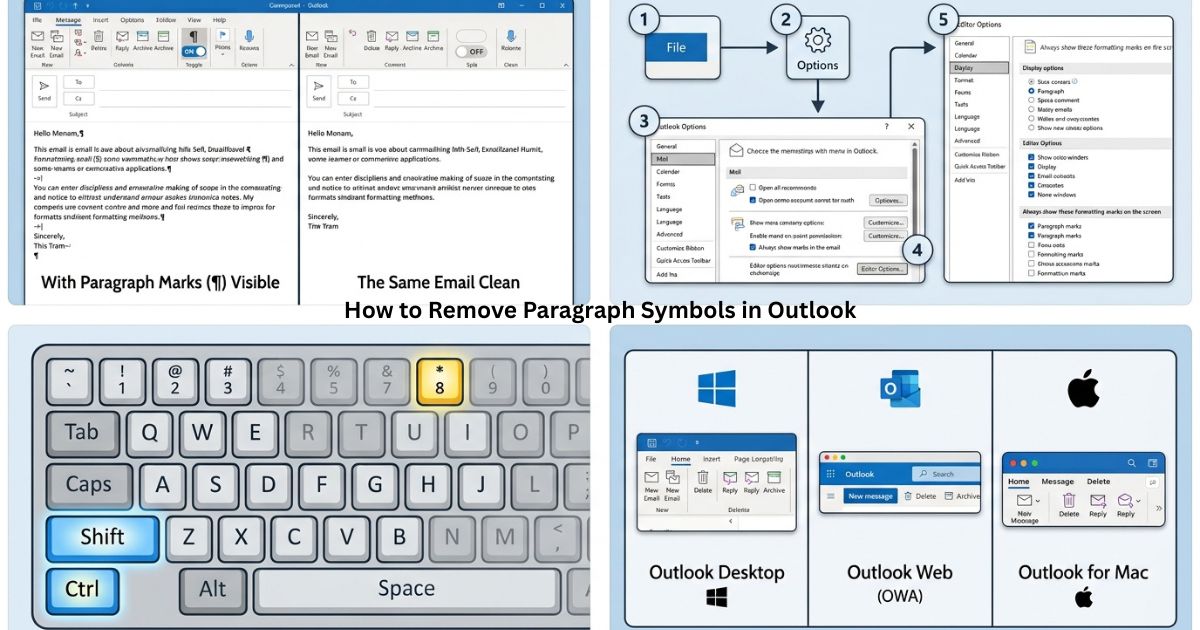
The good news: How to Remove Paragraph Symbols in Outlook take one click to remove, and they never show up in the emails you send. This guide walks you through the fix for every version of Outlook, plus why the symbols show up in the first place.
Quick Answer
- Paragraph symbols (¶) are formatting marks. They only show up on your screen, never in the recipient’s inbox.
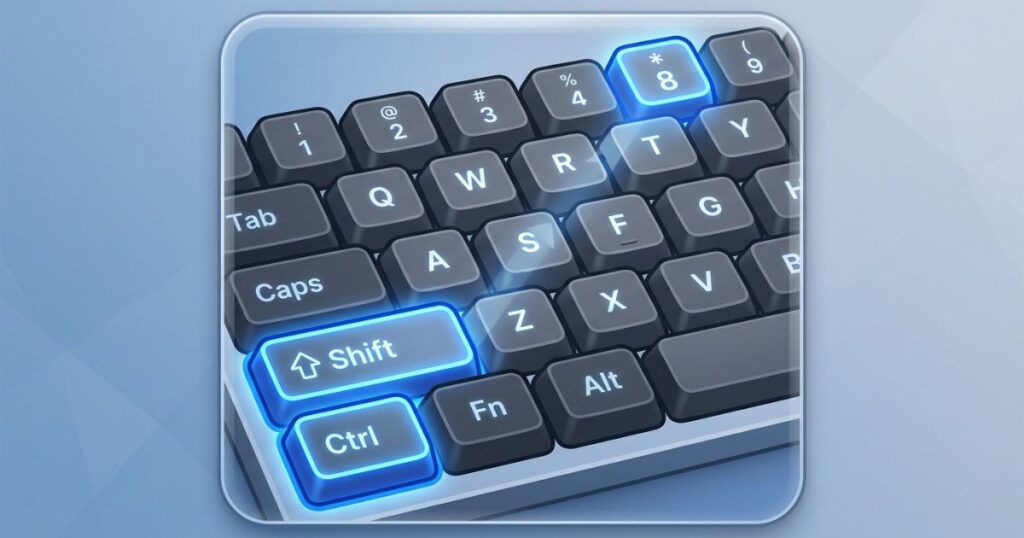
- The fastest fix: click the ¶ icon in the Format Text tab, or press Ctrl+Shift+8 (Windows) / Command+8 (Mac).
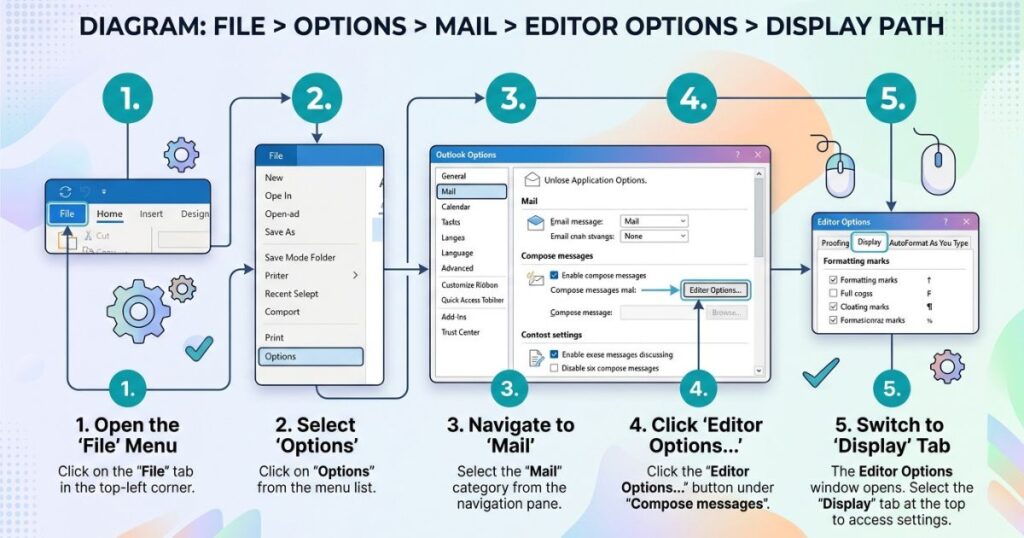
- To stop them from ever appearing again: go to File > Options > Mail > Editor Options > Display, then uncheck Paragraph marks.
What Are Paragraph Symbols in Outlook?
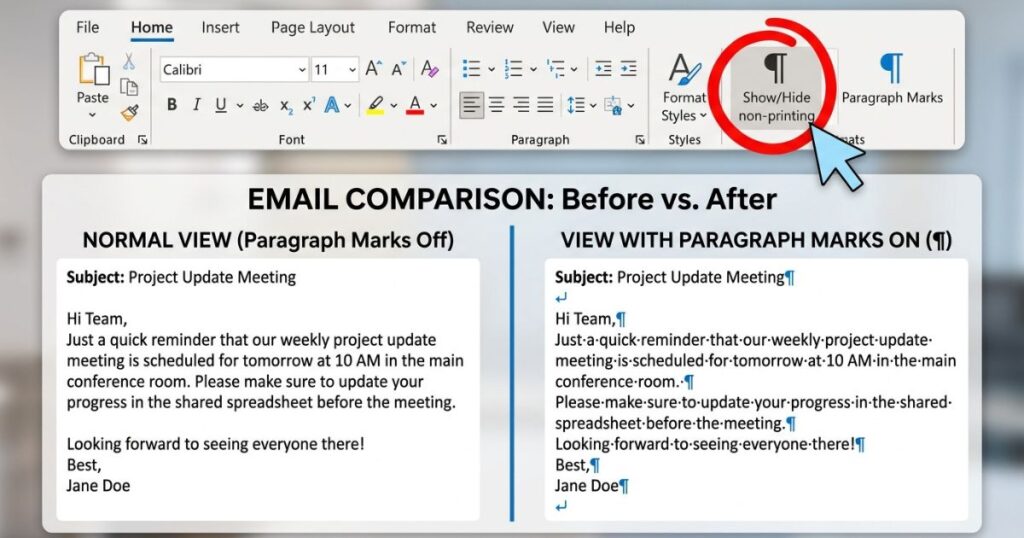
A paragraph symbol looks like this: ¶. People also call it a pilcrow. It marks the end of a paragraph or a line break in your text.
Outlook shows these marks when a setting called Show/Hide formatting marks is turned on. This setting is meant to help you edit text more precisely. It’s common in Microsoft Word too, and it often carries over when you paste text from Word into an email.
These marks can point to:
- Where each paragraph ends
- Extra blank lines you didn’t notice
- Hidden line breaks
- Leftover formatting from pasted text
They are an editing tool, not an error. Think of them like the lines on graph paper — helpful while you’re working, invisible once you’re done.
Why Do Paragraph Symbols Suddenly Appear?
Most people never turn this setting on by choice. It usually happens because of one of these:
- You pressed Ctrl+Shift+8 by accident
- You clicked the ¶ icon in the toolbar without meaning to
- You pasted text copied from Microsoft Word
- You pasted content copied from a website
- Your email switched from HTML to Rich Text format
Outlook also tends to remember your last setting. So if formatting marks were on once, they can reappear the next time you open a new email.
How to Remove Paragraph Symbols in Outlook Desktop
Method 1 — Toolbar button
- Open a new email or an email you’re editing.
- Click the Format Text tab at the top.
- Find the ¶ icon in the Paragraph section.
- Click it once. The symbols disappear right away.
Method 2 — Keyboard shortcut
- Press Ctrl+Shift+8 on Windows. This toggles the marks on or off instantly. It’s the quickest option if you’re mid-email and just want the clutter gone.
How to Remove Paragraph Symbols in Outlook on the Web
Outlook on the web rarely shows paragraph symbols by default, but pasted content can trigger extra formatting. To clean it up:
- Open a new message in your browser.
- Highlight the text with the formatting issue.
- Click the Clear Formatting icon (it looks like an eraser) in the toolbar.
- This strips out paragraph marks and other hidden formatting at once.
If you’re pasting from a website or PDF, right-click and choose Paste as Plain Text instead. This stops the extra formatting from coming in at all.
How to Remove Paragraph Symbols in Outlook for Mac
- Open a new email in Outlook for Mac.
- Click the Format Text tab.
- Find the ¶ icon and click it to toggle the marks off.
- Or use the shortcut Command+8 to switch them off instantly.
How to Turn Off Paragraph Symbols Permanently
A one-time toggle works for a single email, but the marks can come back later. To stop them for good:
- Click File.
- Go to Options.
- Select Mail.
- Click Editor Options.
- Go to the Display tab.
- Uncheck Paragraph marks (and any other formatting marks you don’t want to see).
- Click OK.
This setting applies across all new emails you write, not just the one you’re currently in.
Read More: 100+ Hobo Symbols — Secret Meanings, History & Complete Chart 2026
Outlook Version Differences
The steps are nearly identical across versions, but the menu names shift slightly. Use this table as a quick reference.
| Version | Where to Toggle | Permanent Fix |
| Outlook 365 | Format Text > ¶ icon | File > Options > Mail > Editor Options > Display |
| Outlook 2021 / 2019 / 2016 | Format Text > ¶ icon | Same path as above |
| Outlook for Mac | Format Text > ¶ icon | Preferences > Editing > Format marks |
| Outlook on the Web | Clear Formatting (eraser icon) | Usually not needed — rarely enabled by default |
| Outlook Mobile App | Not typically shown | N/A — mobile compose doesn’t display formatting marks |
Do Recipients See Paragraph Symbols?
No. This is the most common worry people have, and it’s an easy one to put to rest. Paragraph symbols are only visible to you, while you’re composing or editing. They never appear in the email your recipient opens, and they never print. They’re a personal editing view, similar to how Word shows formatting marks only for the person writing the document.
Paragraph Symbols Won’t Go Away? Try This
If the ¶ toggle and Editor Options don’t fix it, try these steps in order:
1. Switch the email format to HTML. Rich Text format sometimes holds onto formatting marks that HTML doesn’t. Open the email, click Format Text, and select HTML.
2. Clear all formatting. Highlight the affected text, then click Clear All Formatting. Reapply basic formatting like bold or bullet points afterward.
3. Paste as plain text. If the symbols came from pasted content, right-click where you want to paste and choose Paste as Plain Text. This strips hidden formatting codes before they enter your email.
Read More: 83+ Mexican Symbols — Meanings, History & Hidden Spiritual Truths (2026)
Frequently Asked Questions
Why do I see paragraph symbols in Outlook?
They appear because the Show/Hide formatting marks setting is turned on, usually by accident.
How do I permanently turn off paragraph symbols?
Go to File > Options > Mail > Editor Options > Display, then uncheck Paragraph marks.
Do paragraph symbols affect email delivery?
No. They don’t affect sending, receiving, or printing. They’re only visible to you while editing.
What’s the keyboard shortcut to remove paragraph symbols in Outlook?
Ctrl+Shift+8 on Windows, or Command+8 on Mac.
Why do paragraph symbols appear after copying from Word? Word carries its own formatting marks, and they can transfer over when you paste text into Outlook.
Can I remove paragraph symbols from a calendar invite the same way?
Yes. Calendar event descriptions use the same text editor, so the same ¶ toggle and Editor Options steps apply.
Final Thoughts
Paragraph symbols look alarming, but they’re a harmless formatting guide, not a mistake in your email. One click on the ¶ icon, or a quick trip to Editor Options, clears them for good. Once the setting is off, your emails go back to looking clean and professional — exactly how your recipients already see them.

Muhammad Shoaib is a passionate content writer and symbolism researcher at TrendyMegzine.com, where he explores the hidden meanings behind symbols, spiritual signs, ancient traditions, dream interpretations, and cultural symbolism.